Sideload Add-in (Windows)
Install the Octostaff add-in from a local shared folder catalog in Word on Windows.
Use this guide if you need to load the Octostaff add-in from a local manifest file before we officially release it in the Office Store. The steps are a bit tedious, but it's not too hard to follow. The core idea is to share the manifest file so that it's accessible via a UNC path (starting with \\), so that it's recognizable by the add-in catalog.
This tutorial is for Word/Excel desktop on Windows.
Before You Start
- You must use the desktop Word app (not Word on the web).
- Create a local folder like
C:\Shared. Do not use OneDrive-synced folders. - Download this file into that folder: https://www.octostaff.com/office-manifests/manifest.xml
- Keep Word/Excel closed until step 3.
Step 0: Create a Local Folder and Save manifest.xml
- Create a folder on your local drive, for example
C:\Shared. - Download
manifest.xmland save it directly inside that folder. - Right-click the folder (not the file) and click Properties.
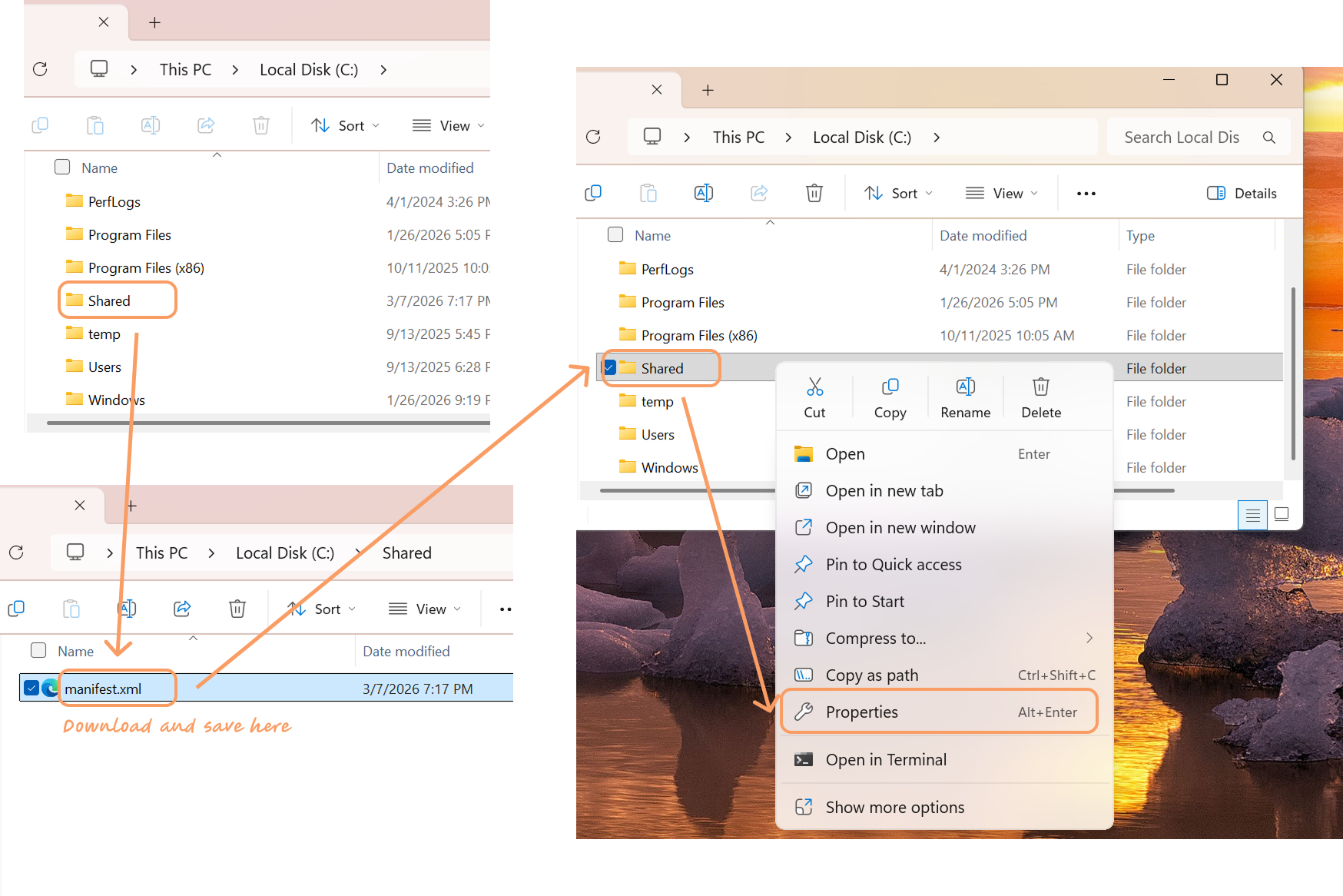
Step 1: Share the Folder
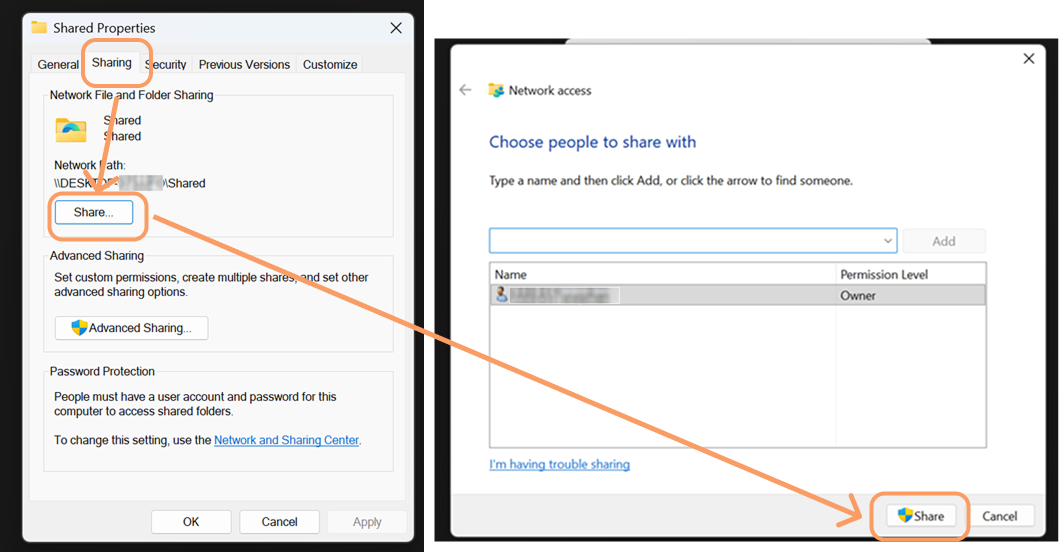
- In Properties, open the Sharing tab.
- Click Share....
- In the network access dialog, click Share to confirm.
- Close the sharing windows with OK.
Step 2: Copy the Network Path
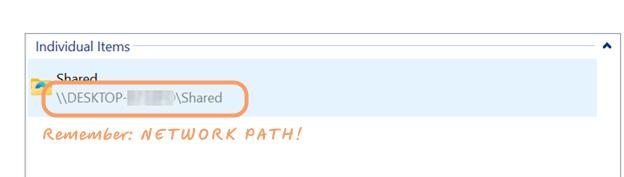
- In the sharing details, find the network path (for example
\\DESKTOP-XXXX\\Shared). - Copy and save this path. You will need to paste it into Word/Excel later.
Step 3: Open Word/Excel Options
The following steps use Word as an example. The same steps apply to Excel.
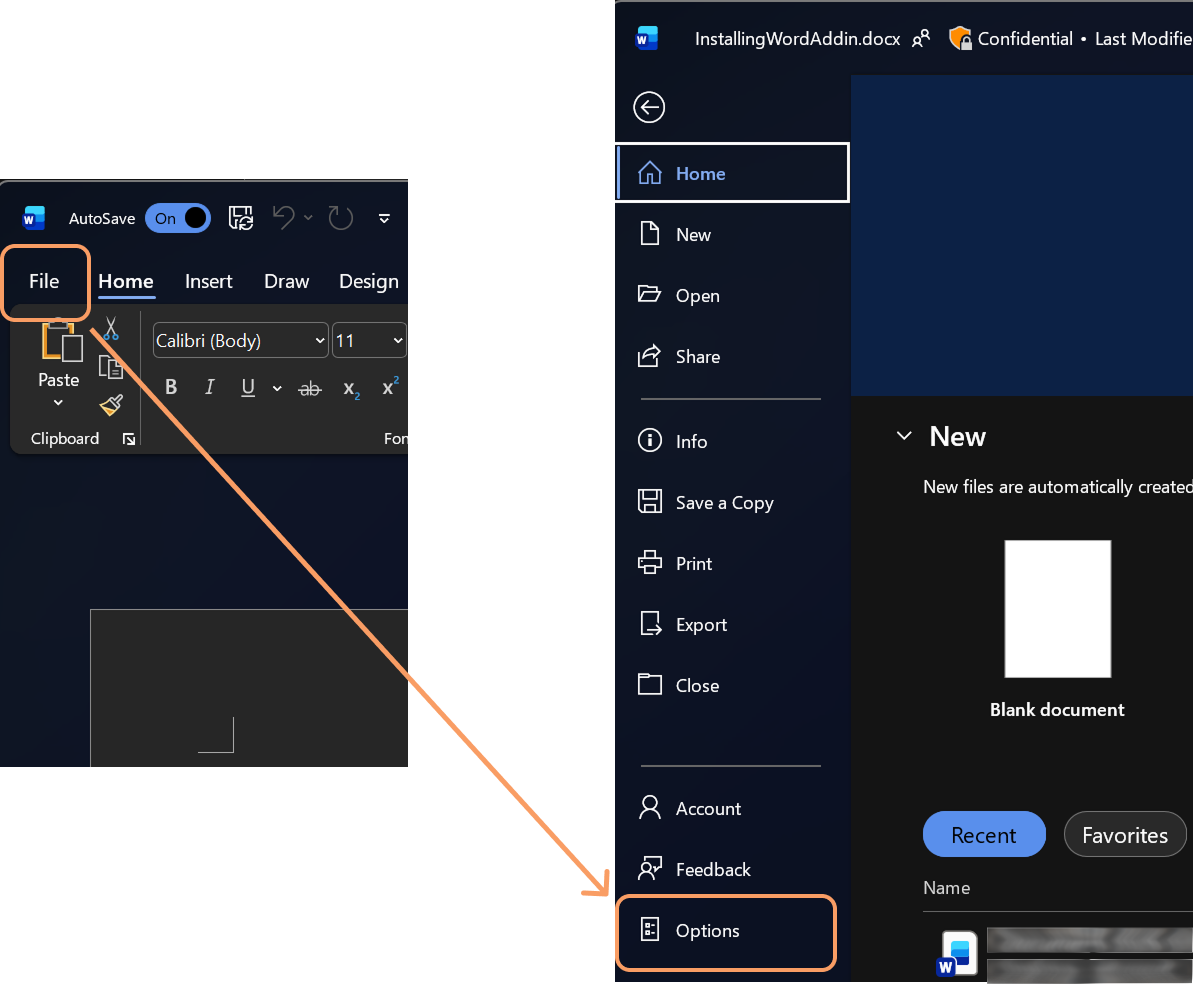
- Open Word/Excel.
- Go to File > Options.
Step 4: Open Trust Center Settings
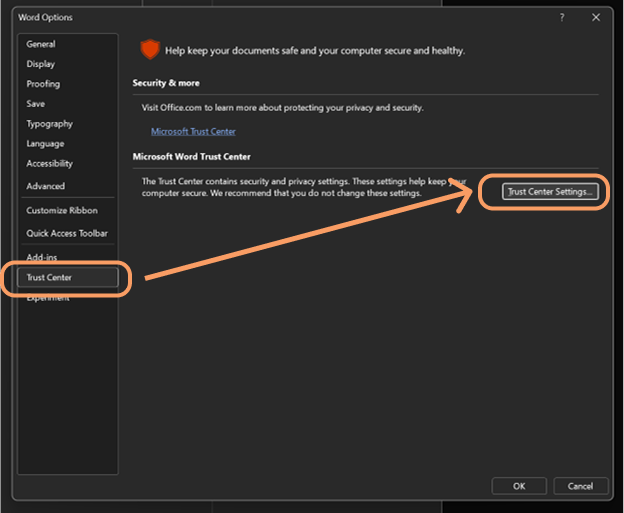
- In Word/Excel Options, select Trust Center.
- Click Trust Center Settings....
Step 5: Add Your Shared Folder as a Trusted Catalog
- In Trust Center, select Trusted Add-in Catalogs.
- Paste your network path from Step 2 into Catalog Url.
- Click Add catalog.
- Make sure Show in Menu is checked.
- Click OK to save.
- Fully close Word/Excel and reopen it.
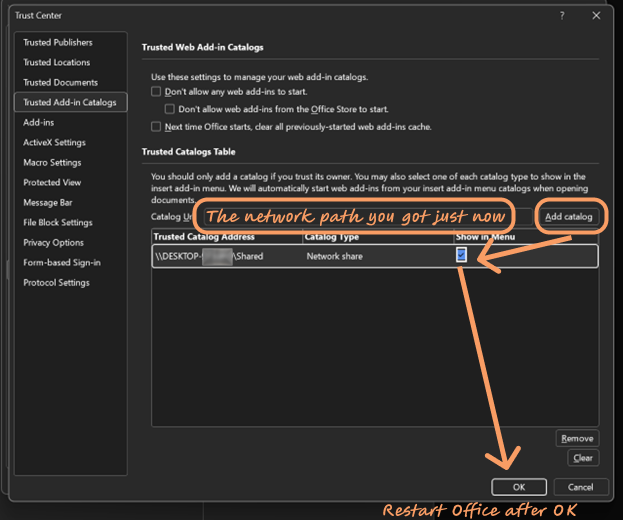
IMPORTANT: Restart Word/Excel is required after adding the catalog.
Step 6: Open the Advanced Add-ins Window
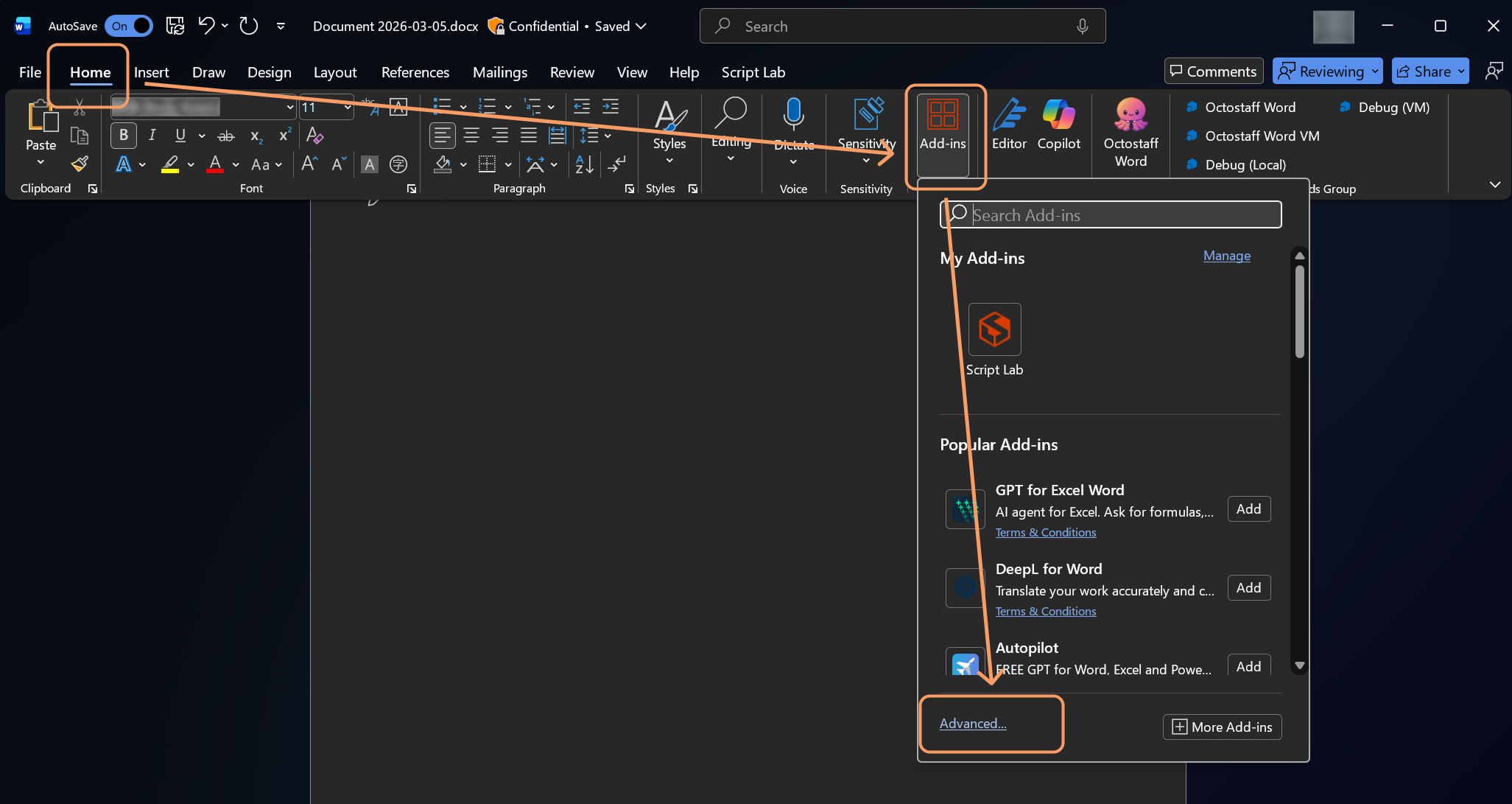
- In Word/Excel, go to Home.
- Click Add-ins.
- Click Advanced... at the bottom of the panel.
Step 7: Select Octostaff from Shared Folder
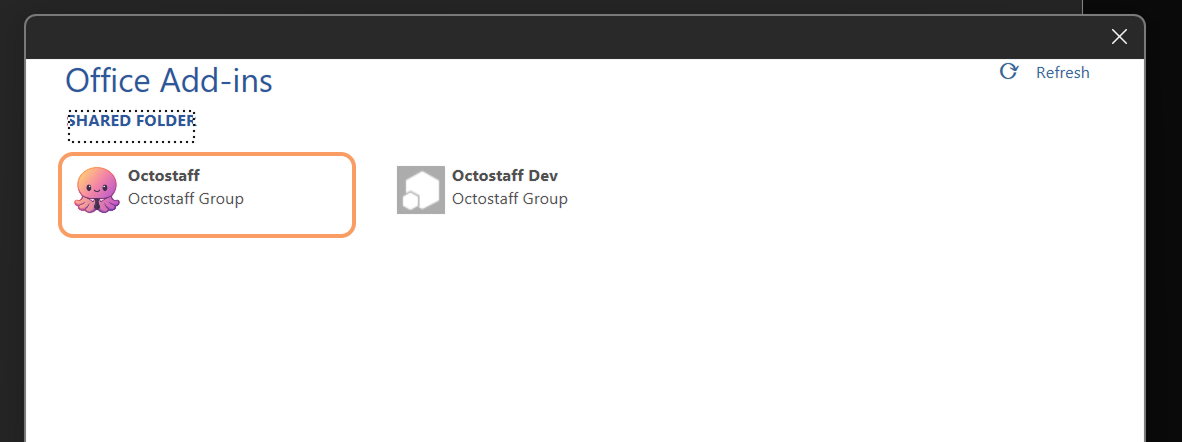
- In the Office Add-ins window, open the Shared Folder section.
- Select Octostaff (octopus icon).
- Wait a few seconds for Word/Excel to load it.
If successful, the Octostaff button appears in the ribbon.
Troubleshooting
- Catalog is empty: confirm
manifest.xmlexists in the shared folder and Word/Excel was restarted after adding the catalog. - Shared Folder tab does not appear: re-check the network path and make sure Show in Menu is enabled in Trusted Add-in Catalogs. Also make sure the path is spelled correctly and accessible from File Explorer.
For Microsoft's official reference guide, see: Create a network-shared folder catalog for task pane and content add-ins.