Getting Started
Set up Octostaff in Word or Excel and start using your AI assistant.
Octostaff is currently in an invite-only beta. You need an approved account to use the add-in. If you don't have access yet, join the waitlist and we'll notify you when a spot opens up.
Important: Register on the Website First
Before you install the Office add-in, go to octostaff.com and sign in with your personal Google or Microsoft account (not your work account).
The website does not support direct email/password registration.
After signing in on the website, if you see a waitlist message, your account is not approved yet. Please wait patiently until an admin enrolls you.
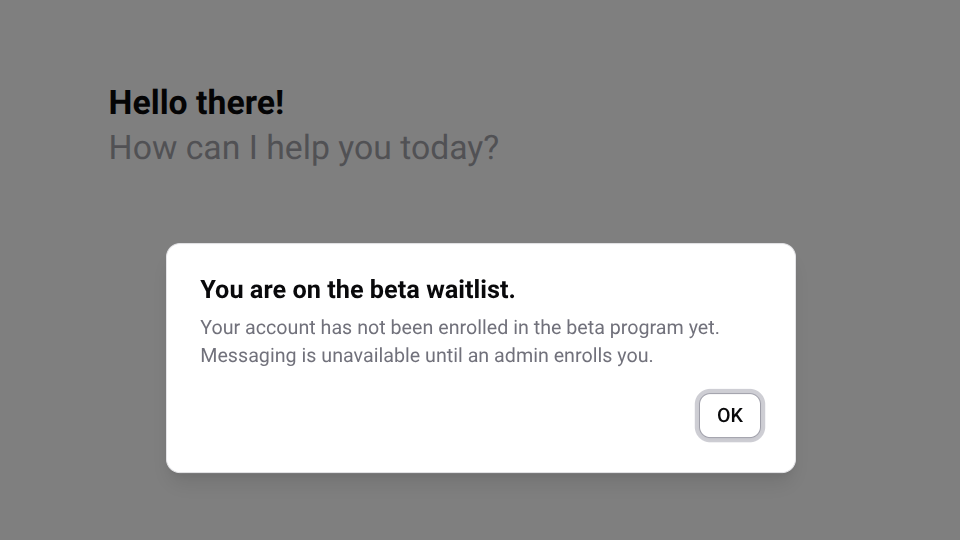
Getting started with Office Add-in
Prerequisites
- A registered Octostaff account on octostaff.com using Microsoft or Google sign-in
- Approved beta access (not on the waitlist)
- Microsoft Word or Excel (desktop app on Windows; Mac and Web should work but they are not well tested)
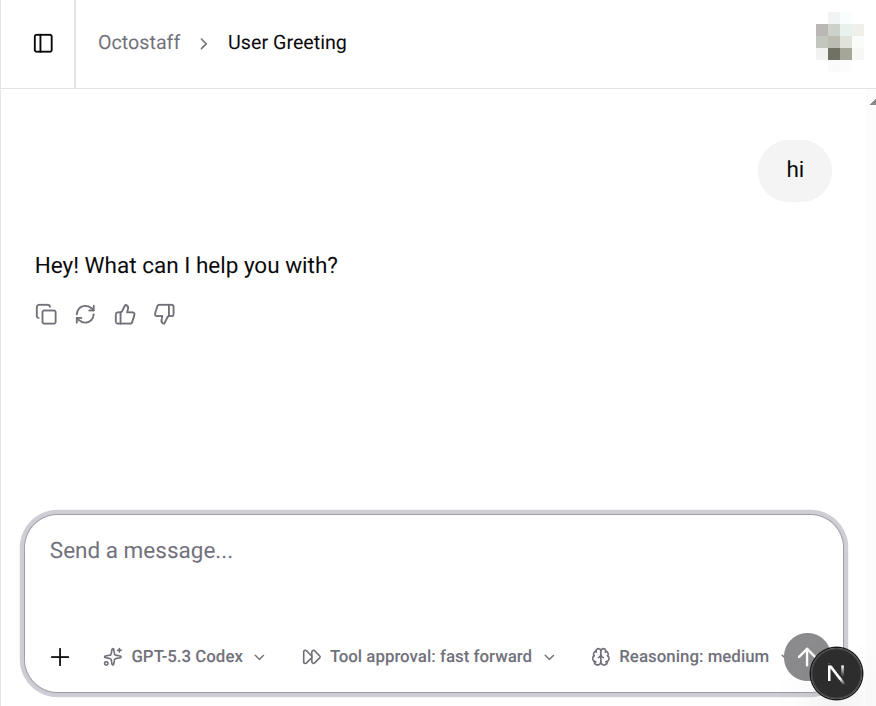
You can check for whether you have the beta access by sending a greeting message on octostaff.com in your browser. If you see a greeting back, you have the beta access.
Step 1: Install the Add-in
1. Open Word or Excel; or open a document or spreadsheet at office.com if you are using the web app.
2. Go to Home > Add-ins or Insert > Get Add-ins (or My Add-ins).
3. Search for Octostaff in the store and click Add.
Before we are able to release the add-in in the Office Store, you need to sideload it. See Sideload Add-in (Windows) for instructions.
The Octostaff icon will appear in your ribbon after installation.
Step 2: Sign In
- Click the Octostaff icon in the ribbon to open the add-in pane.
- Click Sign In and authenticate with the same Microsoft or Google account you registered on octostaff.com.
- If this is your first time, you will be asked to accept the Terms of Service and Privacy Notice.
Tip: If sign-in opens in a separate browser window, check the Known Issues page for workarounds.
Step 3: Start a Conversation
Once signed in, you'll see the Octostaff chat pane. Type a message to get started — for example:
- "Summarize this document"
- "Rewrite the second paragraph in a more formal tone"
- "Create a table from the data in my selection"
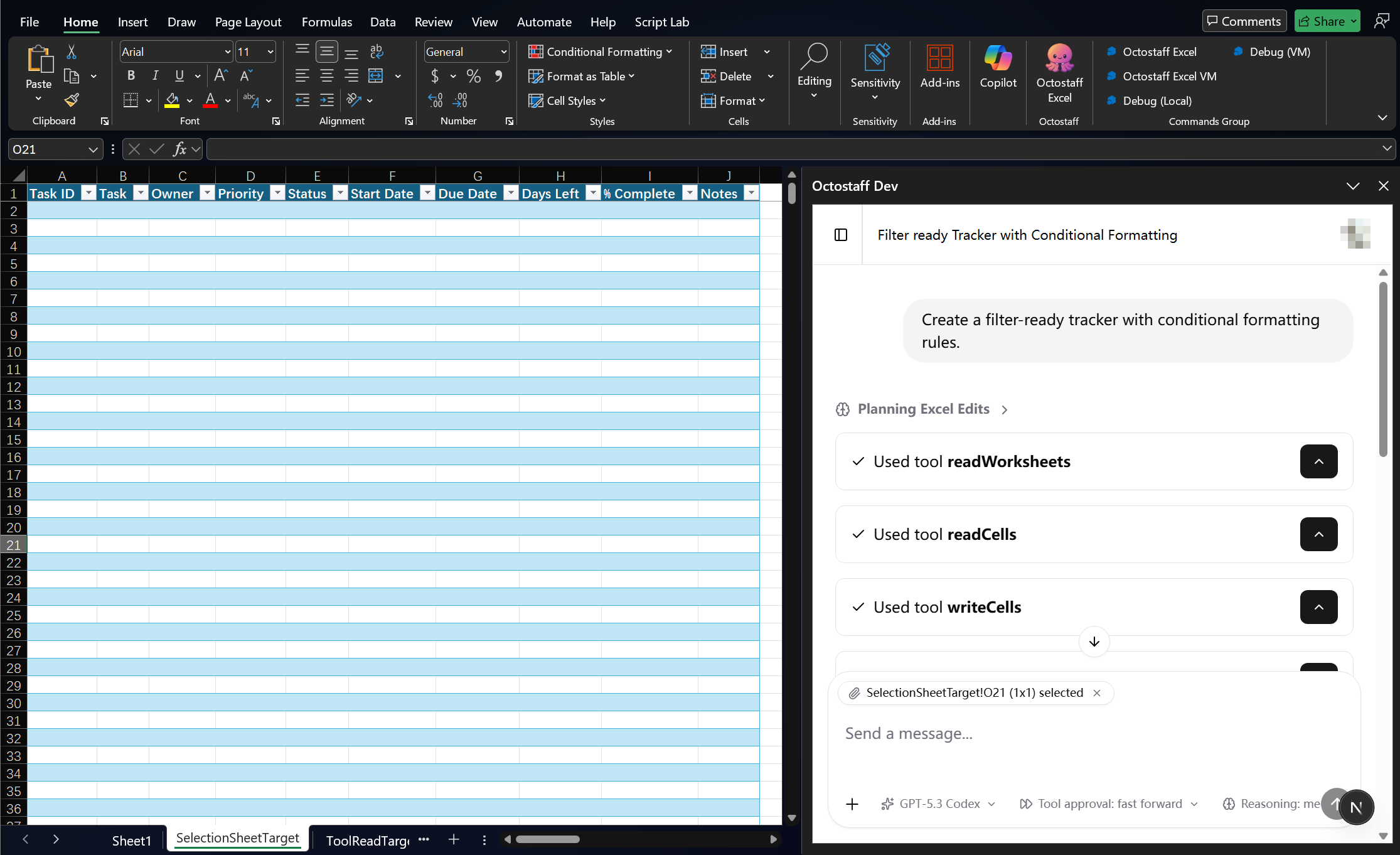
Octostaff can read and modify the content of your current Word document or Excel spreadsheet directly. For example, in Excel you can ask Octostaff to create a filter-ready tracker with conditional formatting:
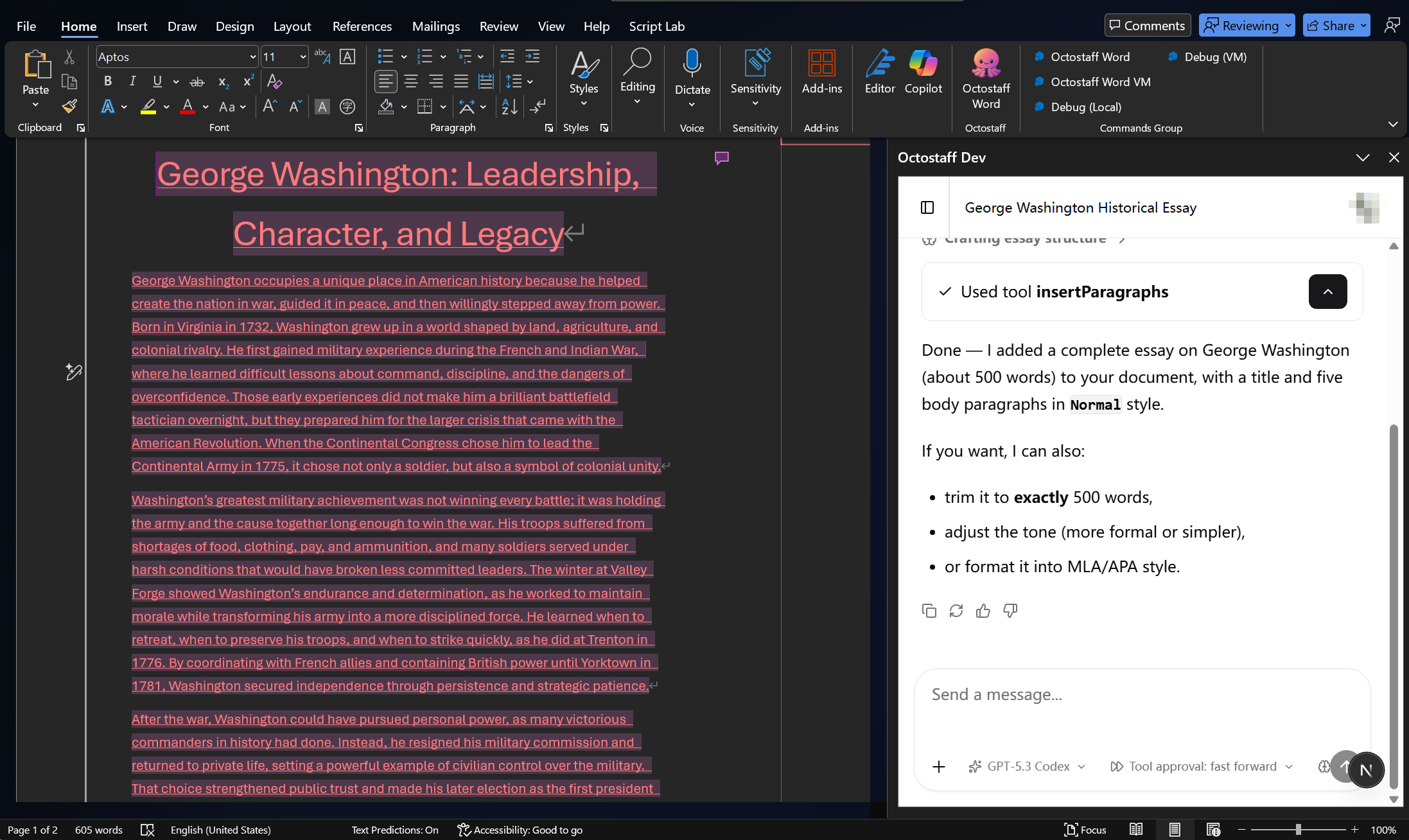
In Word, you can ask it to draft and insert a full essay directly into the current document:
Switching AI Models
You can choose which AI model powers your assistant:
- Click the Settings icon in the add-in pane.
- Go to the Model tab.
- Select your preferred model.
Managing Your Data
Octostaff respects your privacy. You can control whether your conversations are used to improve the service:
- Open Settings > Privacy.
- Toggle Data Collection on or off.
For full details, see our Privacy Notice.
Need Help?
- Check the Known Issues page for common problems.
- Contact us at support@octostaff.com — see the Support page for details.